How to remove a Gemini watermark.
Start with Google's setting for new images. For a file you already have, check the visible sparkle with our local browser tool.
Open watermark removerFor new images, check Gemini first.
You may not need a remover. On a computer, open Gemini, choose Settings → Media Watermark, and turn the visible watermark off before creating a new image. Google currently restricts access to this setting in India, South Korea and Vietnam to AI Ultra subscribers. See Google's watermark settings for availability.
This is a creation setting, not an editor for a file already saved on your device. For an existing download, keep a backup and use the steps below. The setting does not turn off SynthID or Content Credentials.
Remove a sparkle from an existing file.
- Get the original download. In Gemini on the web, hover over the image and choose Download full size, as described in Google's image guide. Avoid starting with a screenshot or a copy resized by a messaging app.
- Open the Gemini watermark remover. Choose one or several images, drop them onto the preview, or paste an image. The page runs the detection and processing on your device.
- Read each result. A confirmed removal shows a before-and-after corner comparison. If the detector cannot confirm the sparkle, the tool leaves that image unchanged and reports that no watermark was found.
- Save the full image. Use Download on a successful result. The preview is a corner crop, but the PNG download keeps the input's pixel dimensions. When multiple removals succeed, Download all saves the files separately.
There is no brush, model selector or strength slider to tune. The engine looks for a supported sparkle layout and tries to reverse its blend. It is not a general eraser for arbitrary logos, stock-photo marks or text.
Check the corner details.
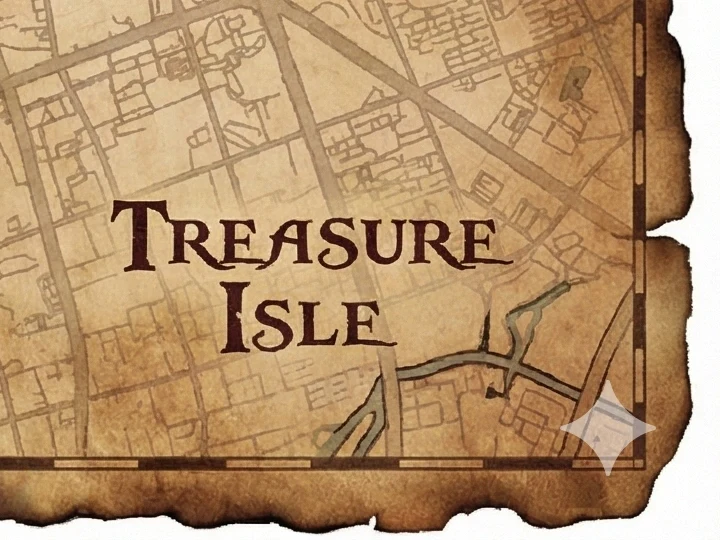
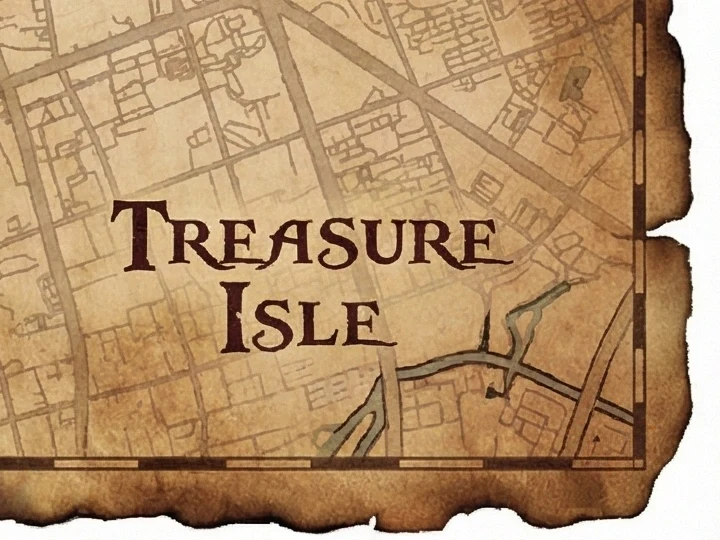
Move the divider across the original logo. Look for a faint star, a pale rectangle, broken fine lines or a sudden change in texture. Then open the saved PNG at 100% size. A small preview can conceal errors that show up in a print or presentation.
| Method | Best use | Tradeoff |
|---|---|---|
| Gemini setting | Creating a new image | Availability varies; does not edit an existing file. |
| Local remover | A supported visible sparkle | Keeps the frame; inspect the processed corner. |
| Crop in an editor | A disposable outer margin | Removes part of the composition. |
When it does not look right.
“No Gemini watermark found”
Check whether there is actually a visible sparkle. A file made with the watermark setting off needs no logo removal. If the sparkle is visible, try the untouched Gemini download: cropping, scaling or recompression can change the expected pattern. Detection is not guaranteed across every image or future Gemini update.
A faint mark or an altered patch remains
Return to the original file rather than processing an already edited result repeatedly. Compare thin lines and gradients under the mark. If the original still produces a poor result, keep the original and choose a different composition or a manual edit you can inspect.
Download all saves only some files
Browsers may ask permission for multiple downloads. Allow it for this site, or use each result's Download button. For a slow batch, start with one image and close unused tabs; decoding and exporting large images uses your device's memory.
A clean corner has limits.
Lossless PNG describes the export format, not perfect restoration. Reverse blending is sensitive to the source pixels, the expected logo and rounding. The output can be larger than a JPEG, and unchanged dimensions do not prove unchanged quality. Keep the source alongside the result.
The visible sparkle and SynthID are different. Google describes SynthID as an invisible watermark embedded in AI media, designed to tolerate common edits. This tool does not target or test it. Removing a logo cannot establish whether a file has SynthID, preserves every provenance signal, or passes any detector.
If provenance matters, consult Google's verification guide and retain the original. Use images you have permission to edit, and describe AI-generated work accurately when sharing it.
Sources and scope.
Google documentation checked October 22, 2026. Tool steps reflect this site's current implementation.