Example · Vermeer's Girl with a Pearl Earring (public domain)
Drag a rectangle on the image to replace the selected area. Or open “Set area with numbers”.
One area, big blocks.
The picture keeps its original palette. Larger blocks remove more visual detail; smaller blocks make a subtle mosaic texture.
- Choose your photoOpen a PNG, JPG or WebP. The example is an editable sample, so you can try the controls before choosing a file.
- Mark an areaDrag over the preview, or enter the left, top, width and height as percentages. The tool edits one rectangular area at a time. Choose Whole photo for a full-image effect.
- Check and downloadReview the edges and block size, then save a PNG. The dashed editing outline is not part of the exported photo.
A mosaic effect or retro pixel art?
Pixelating a photo replaces small groups of pixels with flat squares. It is useful for a blocky background, a low-resolution texture, or obscuring an area in a screenshot. This tool averages colors inside each square. It does not redraw faces, add a console palette, or invent missing detail.
For a game-style portrait or a small sprite, use the picture to pixel art converter. That tool offers limited palettes such as Game Boy and PICO-8, plus a one-pixel-per-block export. Here, the rest of a photo stays unchanged when you select just one area.
Cover details with care
A mosaic is a visual effect. A coarse face or short word can still be recognizable, especially when someone knows the source. Use Solid cover for private text and check the saved PNG at its normal viewing size. Drag a box that extends beyond the detail, rather than leaving its edges visible. Downloading a flattened image also keeps the editing outline out of your result.
Image size and transparency
PNG export keeps transparent pixels and avoids adding another round of JPEG compression. It may produce a larger file than your original. Very large images are reduced to at most 4096 pixels per edge and 12 megapixels to keep the editor usable; the output dimensions appear beside the download. This is an image editor, not a file-size compressor. If you need a smaller file afterward, try the image compressor.
Good to know.
How do I pixelate part of a photo?
Upload a PNG, JPG or WebP, choose Selected area, and drag a rectangle over the preview. Increase Block size for larger mosaic squares. You can also enter the area as percentages, without dragging. Download the PNG when you are happy with it.
Can I pixelate the whole image?
Yes. Choose Whole photo. It applies the mosaic to every pixel while keeping the image shape. Images over 4096 pixels on an edge or 12 megapixels are reduced before editing; the tool shows the exported dimensions.
Is pixelation the same as pixel art?
No. This tool makes a blocky mosaic using the colors already in the photo. Our Image to Pixel Art tool also reduces the color palette and can export a small sprite grid.
Can mosaic safely hide private text?
Pixelation can leave recognizable patterns. For private text, passwords or identifying details, choose Solid cover and check the downloaded image. The selection outline is only an editing guide and is not included in the download.
Are my photos sent to a server?
No. Editing and PNG export happen in your browser. The file you download contains the rendered image rather than the original file metadata. PNG output can be larger than the original JPG.
More free tools.
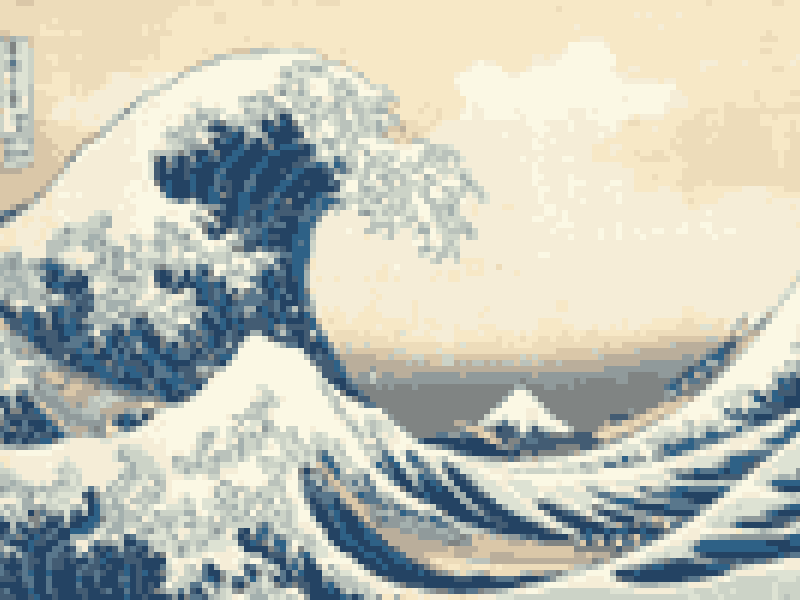
Picture to Pixel Art
Turn a picture or photo into pixel art, with a true-size sprite export.
Free · 6 retro palettes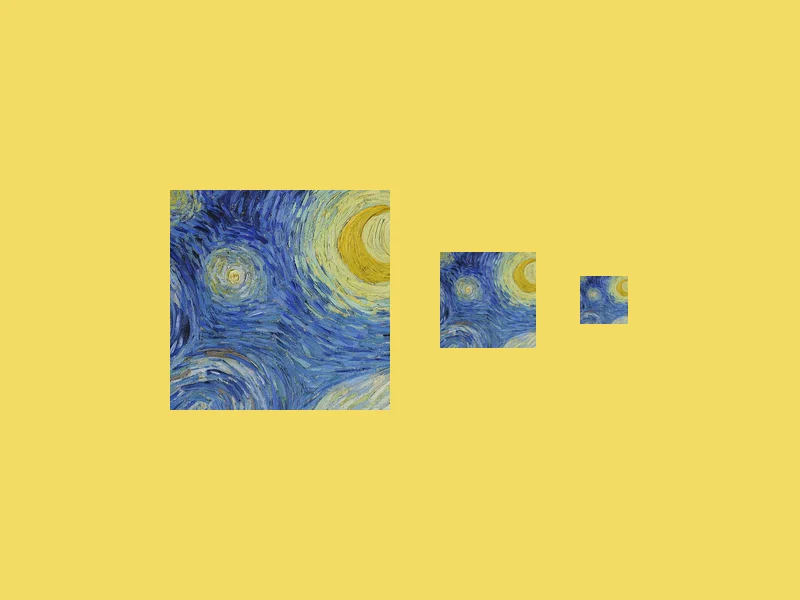
ICO Converter
Convert an image into a multi-size .ico file, from 16 to 256 px.
Free · PNG · JPG · SVG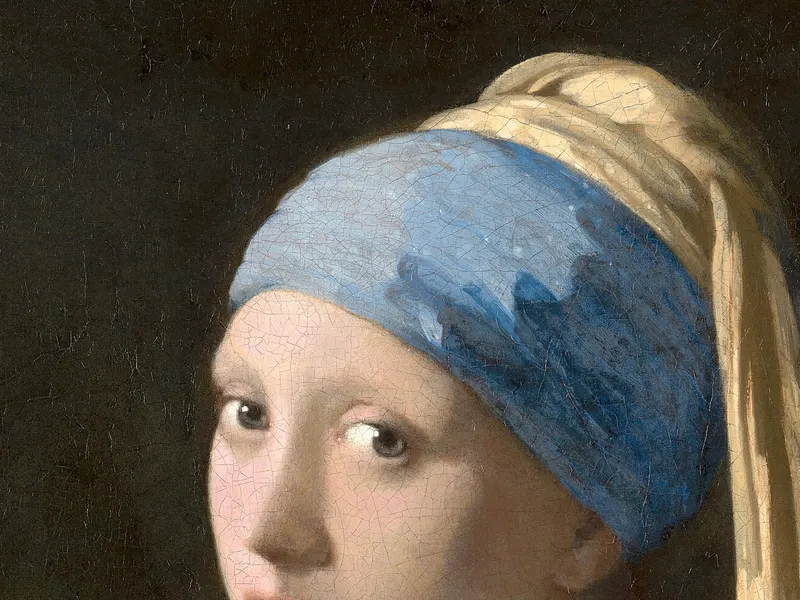
Resize Image to 20KB
Get a photo under a file-size limit for an online form.
Free · 10 to 200 KB presets
Image Compressor
Shrink JPG, PNG and WebP files with a quality slider.
Free · Quality control